
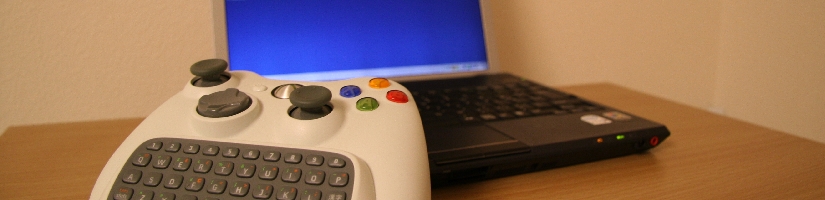
How to work
Requirements
We need the following items to run the XPCC.
- XBOX 360 console
- XBOX360 Messenger Kit (chatpad)
- Microsoft Visual C# 2008 Express Edition
- XNA Gaming Studio 3.0
- XNA Creators Club Premium membership (Microsoft's requirement)
- XPCC source code
We don't need to get:
- XBOX360 Wireless Gaming Receiver for Windows -- XBOX 360 controller is connected to XBOX360 only.
Please understand that this is the unstable software. Please use the software on your responsibility.
I strongly recommend that you finish the Step.4 before getting the "XNA Creators Club Premium membership".
About XNA Creators Club Premium membership
We need XNA Creators Club Premium membership to use the XPCC. It take costs and I don't recommend you to register it if you are planning to use this membership for only using the XPCC.
Please read the following sites about membership.
http://creators.xna.com/en-US/membership
http://creators.xna.com/en-US/tour_detail#tour_three
Prepare the environment
Step1: Download and install the Visual C# 2008 Express Edition
Microsoft Visual Studio Express Editions
http://www.microsoft.com/express/download/
WS000000.JPG
Step2: Download and install the XNA Game Studio 3.0
Microsoft Download Center
http://www.microsoft.com/downloads/details.aspx?FamilyId=7D70D6ED-1EDD-4852-9883-9A33C0AD8FEE&displaylang=en
Step3: Get the XPCC source code
Get the XPCC source code from here.
Step4: Compile source code
1. Launch the Visual C# 2008 Express Edition.
2. Select the "Project/Solution"
3. Open the "XBOX PC Control.sln"
4. Rebuild the XController project
5. Rebuild the Xbox 360 of XContoller project
6. You can confirm the result of Rebuild by status bar.
Step5: Get the key
1. Move to your XBOX360
2. Open the "My Xbox"
3. Open the "Game Library"
4. Open the "Community Games"
5. Select the "XNA Game Studio Connect"
6. Select the "Launch"
7. You will see the key
8. Please remember the key
Step6: Enter key in XNA Game Studio 3.0
1. Select the "Launch XNA Game Studio Device Center" in the XNA Game Studio 3.0
2. Click the "Add"
3. Select the XBOX360
4. Name your XBOX360 console (For example: home, test)
5. Input the key
6. If you see the following screen, please confirm again your key.
7. When success, you will see the following screen.
8. You are ready to deploy the XPCC to your XBOX360 console!
Step7: Deploy XPCC to XBOX360
1. Click the Deploy
2. The XPCC will be deployed to your XBOX360 console.
Step8: Launch the XPCC in your XBOX360 console
1. Move to your XBOX360 console
2. Close the "XNA Game Studio Connect"
3. Open the "My Xbox"
4. Open the "Game Library"
5. Open the "Community Games"
6. You will see the XPCC in the list
7. Select the "PlayGame"
8. Let's push A button in your XBOX360 controller
9. The XPCC on XBOX360 will start to wait connection from Windows PC
Step9: Launch the XPCC in your Windows PC
1. Launch the .\XBOX PC Control\XController\bin\x86\Release\XController.exe
2. You will see the following screen:
3. Create a local profile - you don't need to get a new LIVE profile.
4. Click the "Done"
5. You will see the following screen, and this is main screen of the XPCC.
6. Let's type "B" key in your keyboard to connect the Windows PC to the XBOX360. The connection may take 1 minutes.
7. Try to type the chatpad or move the joystick
8. Finish
Operations:
Chatpad's green / orange button not work.
| Left thumbstick | Move cursor |
| Right tumbstick | Mouse wheel |
| A Button | Left click |
| B Button | Right click |
| Chatpad | Key inputs |
| L + Chatpad | type with Green button |
| R + Chatpad | type with Orange button |
| DPad | Keyboard arrow key |
| X Button | Ctrl |
| Y Button | Alt |
| Start | Windows Key |
| Back | ESC Key |
| L + 1-0 numkey | F1 - F10 |
HOME
XPCC_Source.zip (08/01/19)
前のページへ